Git Errors
This page shows how to resolve common Git errors on Appsmith.
Invalid Git repo
Cause
The SSH address provided is incorrect or access rules prevent connection to the repository.
Solution
- Verify if the SSH address is correct and functional.
- Check connection rules on the platform where the application is deployed.
- If issues persist, contact support for assistance.
Invalid GitConfig
Cause
This error occurs due to a Redis cache issue with user profiling, resulting in an invalid Git configuration.
Solution
- Logout from the application.
- Login again to refresh the user profile and Git configuration.
- If issues persist, contact support for assistance.
Conflicts while merging
Cause
Conflicts arise during the merging process when the same file has been edited on both branches, and Git cannot automatically resolve these conflicts.
Solution
If facing conflicts in the Appsmith UI while merging branch A into branch B, raise a pull request targeting branch B on your Git provider, and manually resolve the conflicts.
See Resolve Merge Conflicts in Git
Git push failed for pending upstream changes
Cause
If you're working on branch A and someone else pushes changes to the remote counterpart of the same branch, you may encounter conflicts if both have edited the same files.
Solution
To resolve this:
- Create a new branch from your local branch
A, naming it branchA-fix. - Raise a pull request from branch
A-fixagainst the original branchA. - Resolve conflicts within the pull request interface or locally before merging.
- In Appsmith, discard and pull the changes into branch
A.
See Resolve Merge Conflicts in Git
Maximum call size exceeded error
Cause
This error is due to the size limit on the merge operation being exceeded, possibly from large files or too many changes.
Solution
Split the merge operation into smaller chunks and remove any unnecessary large files from the repository.
Private repo limit error
Cause
This occurs due to restrictions on the number of private repositories that can be connected.
Solution
In the community edition, you can only connect to 3 private repositories. If you want to connect more private repositories, you must upgrade to a paid plan. For more information, see Pricing.
CI/CD deployment failed - missing packages
Cause
This error occurs when CI/CD fails because the application uses Packages that are not present in the workspace where the CI/CD is being triggered. The deployment is aborted to protect the last successful version.
Solution
To resolve this:
-
Ensure that all Packages used by the application are imported into the workspace of the application for which CI/CD is being triggered.
-
If the issue continues to happen despite importing all Packages, reconfigure the bearer token from the CI/CD settings of the application and use the new bearer token in your CI/CD API. This is required because older bearer tokens may not have the necessary permissions to resolve Package dependencies.
For more information, see CI/CD with Git-Connected Apps and Packages.
Edit and view mode out of sync
Cause
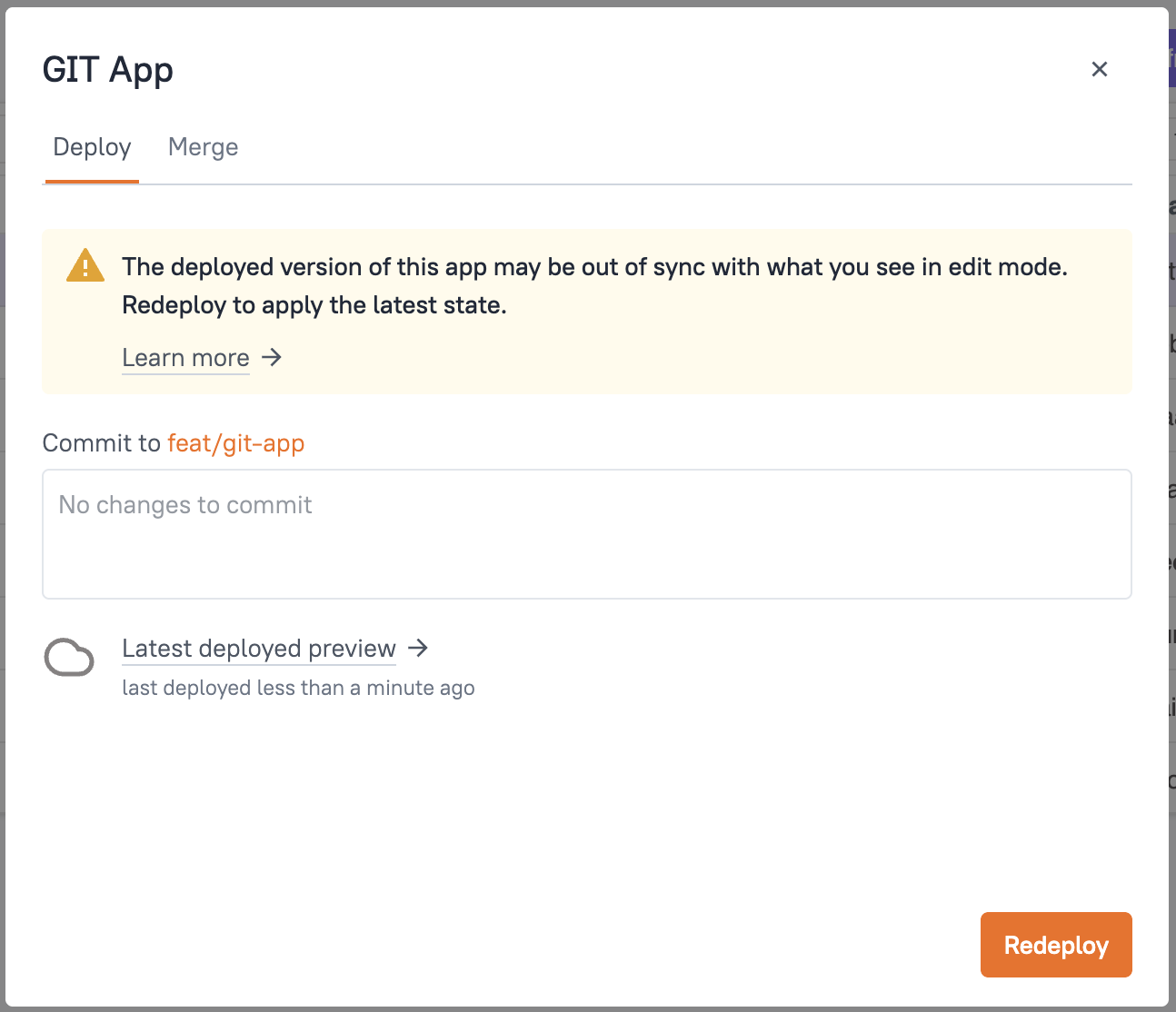
In some cases, an issue can occur where the latest changes have been pulled to the edit mode of the application, but the deployment to view mode failed. This results in edit mode and view mode being out of sync, with no more commits to be pushed.
Solution
When edit and view mode are out of sync and there are no more changes to be committed, you will see the Deploy button on the top right of the editor displaying an orange notification dot. When you hover over it, a tooltip will appear stating "Redeploy needed to sync changes from edit mode." To resolve this:
- Open the Git commit modal by clicking the Deploy button on the top right of the editor.
- Click the Redeploy button in the Git modal to synchronize the changes from edit mode to view mode.